Hyper-V
less than a minute
To start the wizard for inventorying Hyper-V servers, click the Hyper-V button. After you have selected a company and a domain or entered your credentials (see: Basic Steps) the Hyper-V step is displayed.
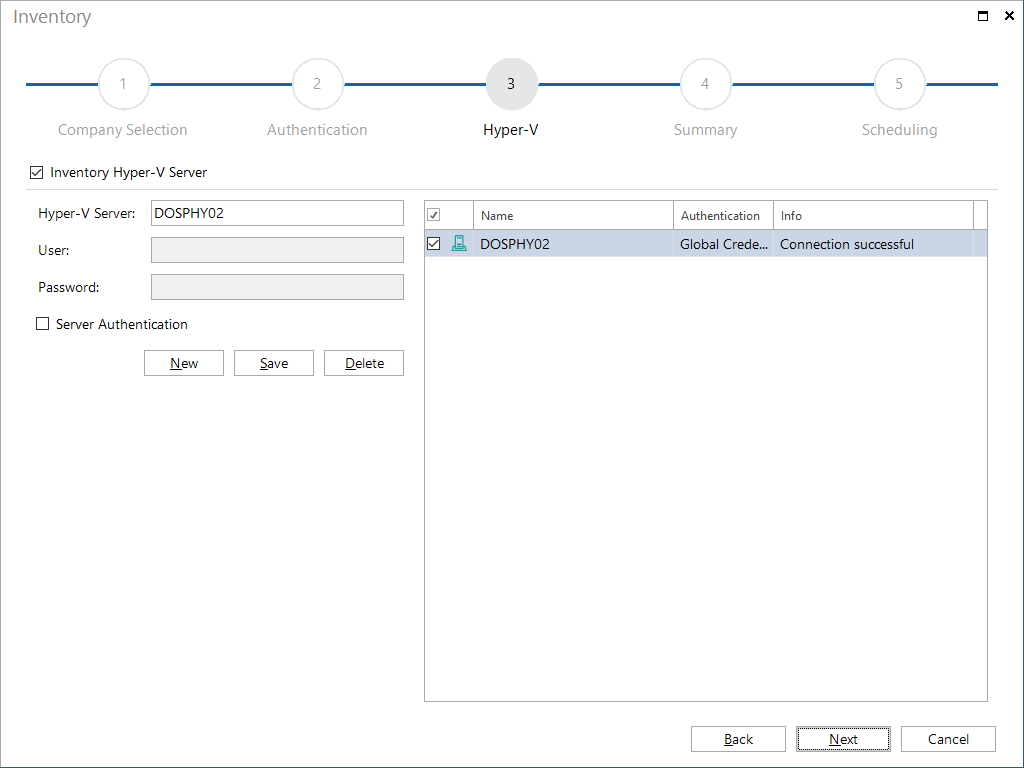
To inventory the desired Hyper-V servers, click the New button and specify the name of the respective system. You can also enter alternative credentials to those in the Authentication step. After you have saved your entry, Docusnap will check whether this system belongs to the domain you specified. If yes, the server will be added to the list at the top of the window, and the Next button becomes active. If the specified server name is not correct, the button remains grayed out. After adding the desired systems to the Hyper-V Server table, you can use the checkbox next to each system to specify whether it is to be included in the inventory scan or not.
If the specified server name is a cluster Hyper-V, the Docusnap inventories the information of the cluster, including all hosts in the cluster. If only the name of a Hyper-V server is entered, then just the data of this server is inventoried.